The TV remote
Walking over to a deck to press pause gets old. Spawn a TV Remote from SPAWN →
Objects.
Using it
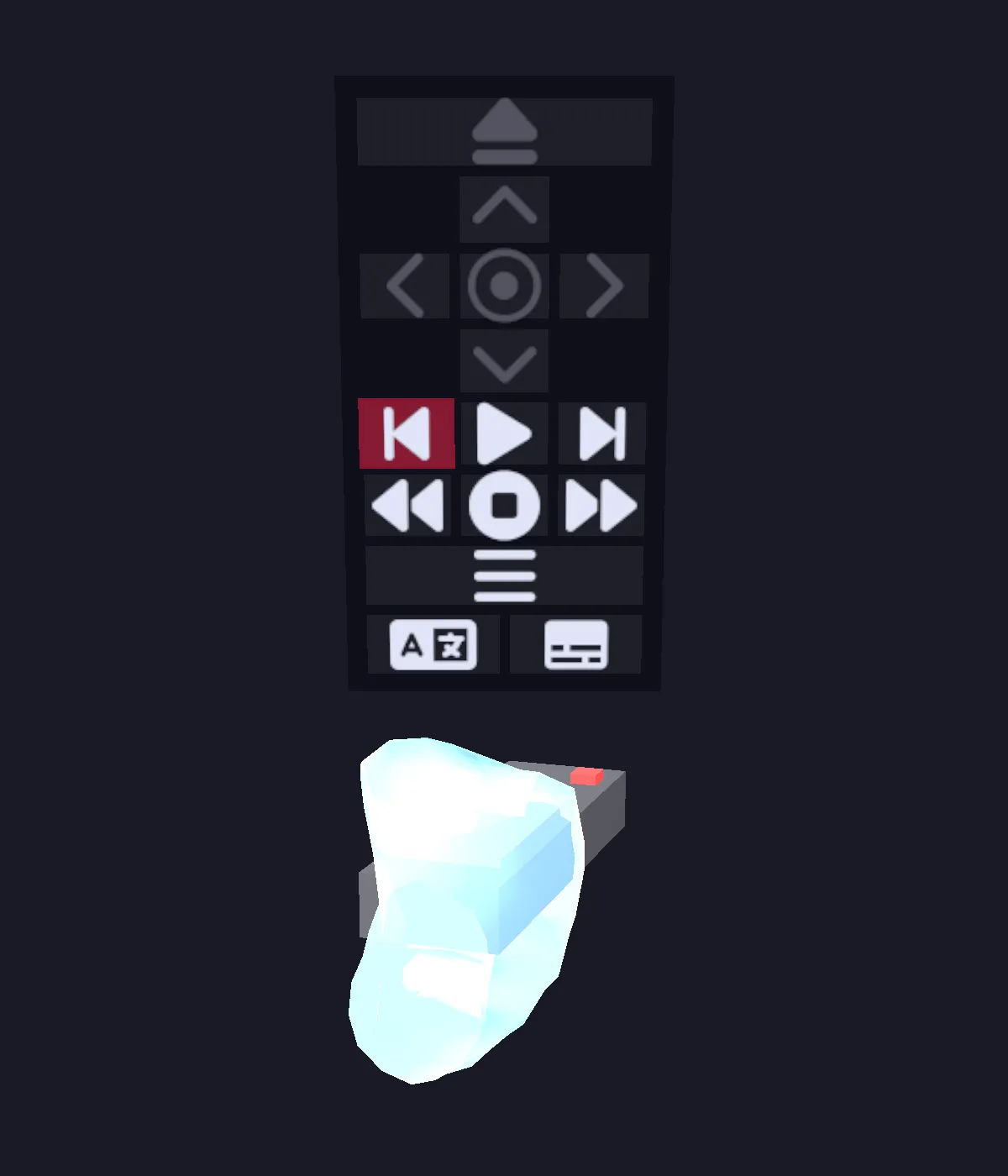
Section titled “Using it”Hold the remote and point it at something. The target is outlined in maroon, and a small menu appears above the remote with the controls that make sense for whatever you are aiming at.
In VR — flick the thumbstick up or down to move the selection, then press the primary
button (A / X) or click the thumbstick to activate.
On desktop — the remote snaps to the lower-right of the screen, aiming where you look.
Arrow Up / Arrow Down move the selection and Enter activates. Because it is
FPS-snapped, dropping it needs Ctrl + Left-click — a plain click will not let go.
What it can drive
Section titled “What it can drive”| Target | Controls |
|---|---|
| TV | Power, volume down, mute, volume up |
| VCR | Eject, play, pause, stop, fast-forward, rewind |
| DVD player | The same, plus chapter skip, MENU, a direction cluster with OK for disc menus, and audio and subtitle track cycling |
| CD player | Play, pause, stop, fast-forward, rewind, track skip |
| Cassette deck | The same, but track skip is greyed out — a cassette cannot seek to a track |
Cells light up only when they would do something: the disc-menu cluster is live only while a disc menu is showing, and audio and subtitle cycling only during playback.
On the remote itself, play and pause share one cell whose icon reflects the current state, and the buttons are icons rather than words. The names in the table above are how each action is labeled on the TV’s own on-screen display.