

Box art and manuals
A shelf of identical gray cartridges is not much of a shelf. RetroXR can fetch cover art, screenshots, game details and scanned manuals from ScreenScraper, so your library looks like a library.
Setting up your account
Section titled “Setting up your account”ScreenScraper accounts are free, and worth the two minutes — anonymous scraping is heavily rate-limited.
-
Register at screenscraper.fr, then open the menu in RetroXR and go to
OPTIONS. -
Pick the Scraper tab, marked ① below.
-
Enter your Username (ssid) and Password in the fields marked ②.
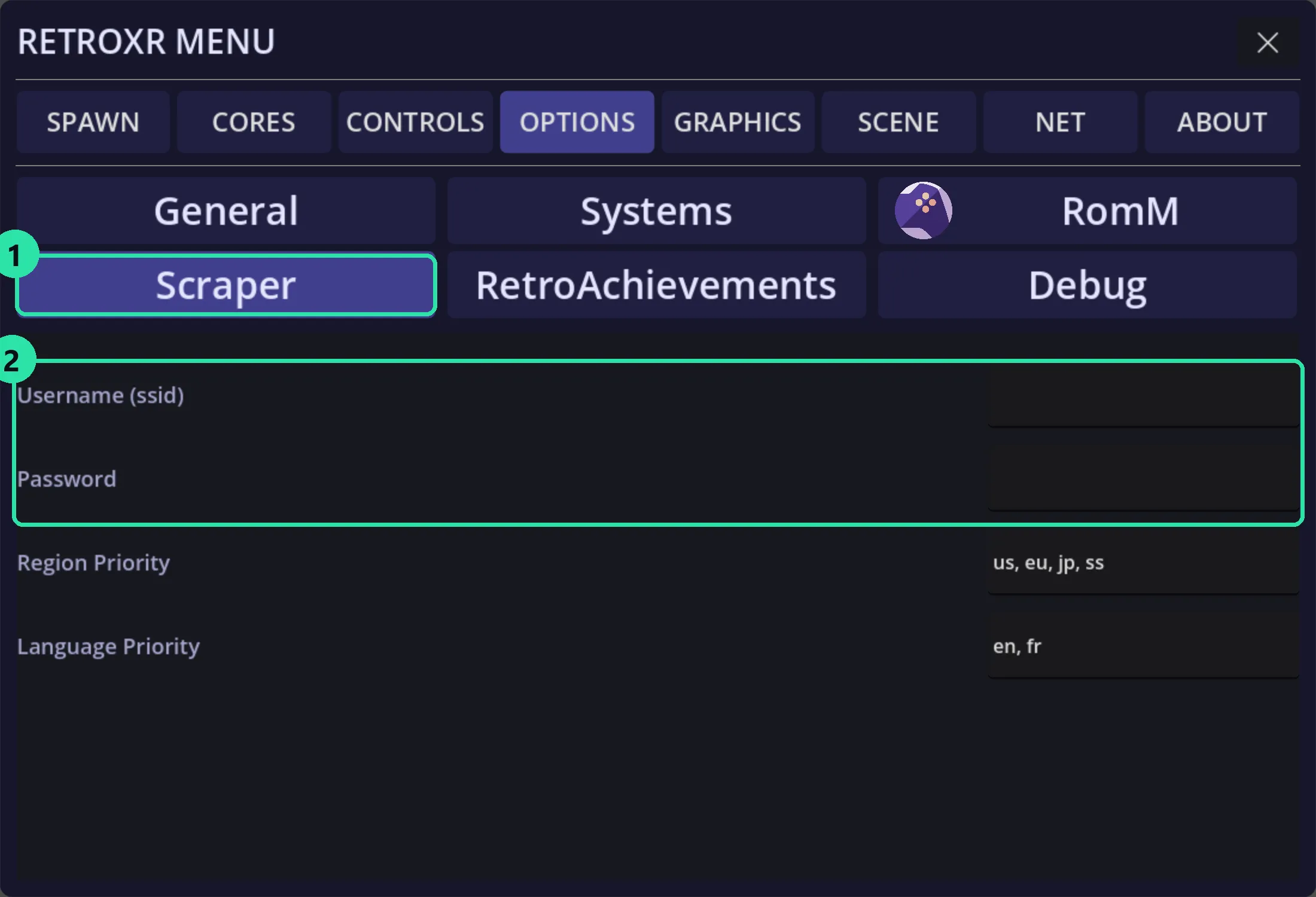
Below the credentials are two more settings worth knowing about:
- Region Priority — which region’s cover you get when several exist. The default is
us, eu, jp, ss. - Language Priority — the same idea for language, defaulting to
en, fr.
Reorder these if you would rather have European boxes than North American ones.
Scraping a game
Section titled “Scraping a game”Open SPAWN → Games, pick a system, and find the game in the list. Each row
carries its own controls on the right.
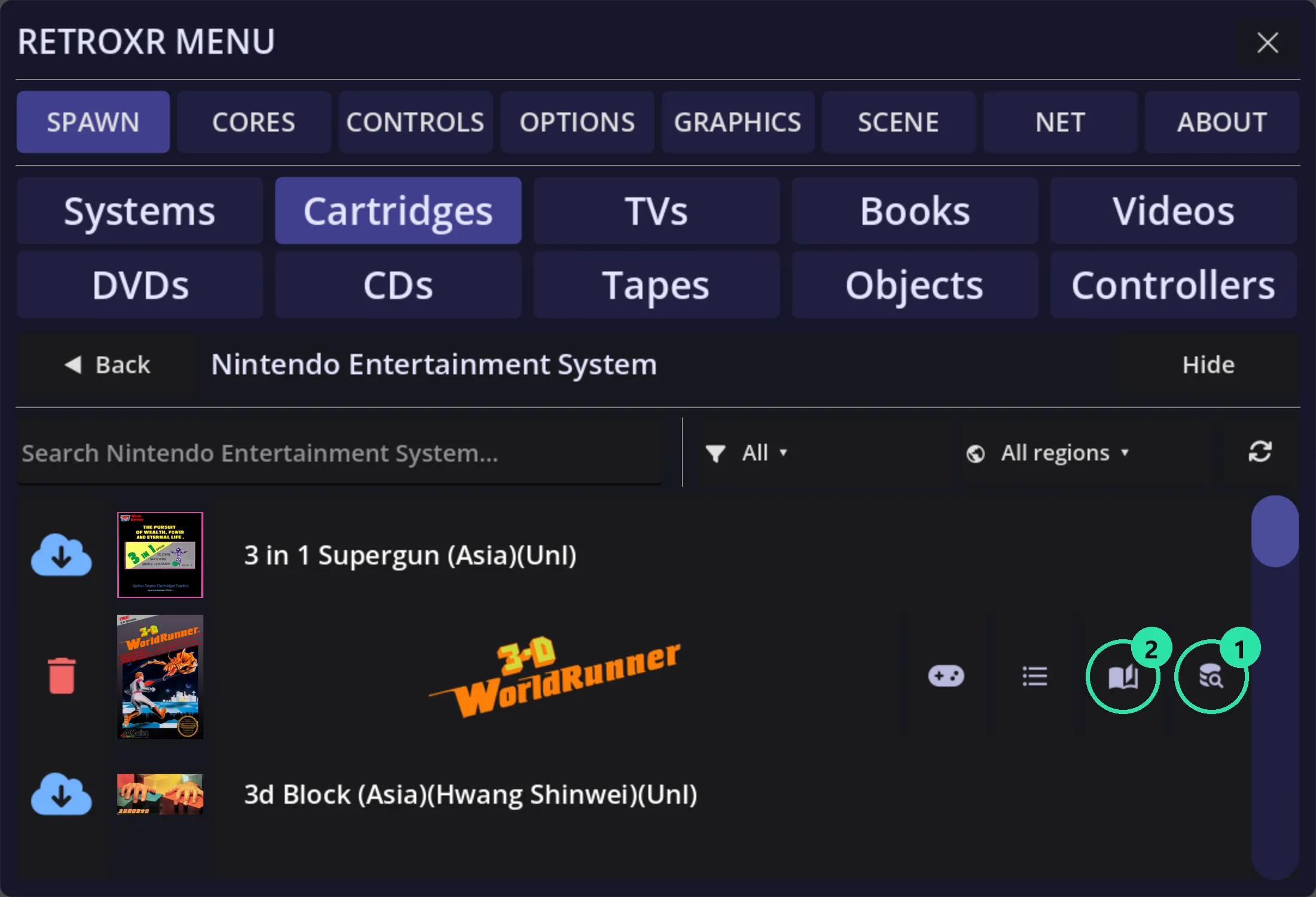
① — the database-and-magnifier icon starts a scrape for that one game. RetroXR hashes the ROM, sends it to ScreenScraper, and fills in whatever comes back.
② — the open-book icon appears once a manual has been found, and spawns it as a book you can hold.
The other two icons on the row are the gamepad, which spawns the cartridge and starts it, and the list, which reaches that game’s saves.
What you get
Section titled “What you get”- Box art on the cartridge itself and in the Games list.
- Screenshots and game details.
- Marquees, for the arcade systems that had them.
- Manuals, which become real books.
Reading the manual while you play
Section titled “Reading the manual while you play”This is the part worth doing. A scraped manual spawns as a physical book — leave it open on the desk next to the TV while the game runs, which is what manuals were for.
Page turning, sizing and the half-page option are covered on books and magazines.