Using a real gamepad, keyboard or mouse
Holding an imaginary controller is charming for about ten minutes. If you have a real gamepad, keyboard or mouse — Bluetooth or USB — RetroXR can forward it into a machine, and your hands stay free.
The way it does that is a receiver: a small box on a one-meter lead that seats in a controller port and forwards exactly one real device to it. Put the Quest controllers down and the room still works while the game runs on the hardware in front of you.
The three receivers
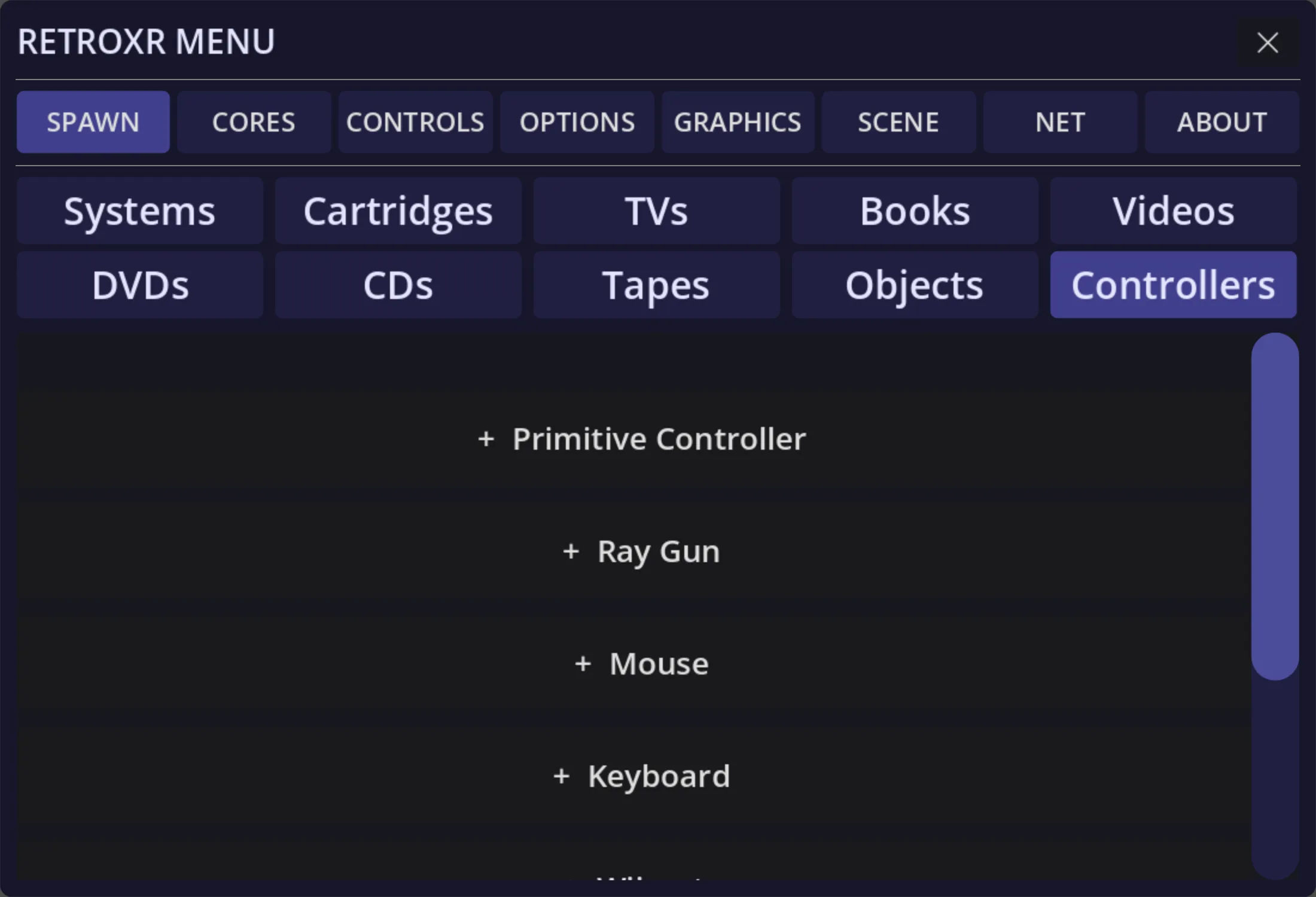
Section titled “The three receivers”Spawn them from SPAWN → Controllers. They are color-coded, and each carries a glyph
for what it forwards.
The LED
Section titled “The LED”Every receiver has a small lit LED on its body. That is the whole status display: seated and live, or not. It is deliberately a light on an object rather than a mode indicator in a menu, because an object you can see across the room is easier to find again than a setting you toggled.
Gamepad
Section titled “Gamepad”A gamepad receiver forwards one named gamepad, chosen when it was spawned. That is why the label matters: with two pads connected you spawn two receivers, seat them in ports 1 and 2, and get genuine two-player with nobody holding a virtual controller.
Connect the pad to your headset or PC first — the Controllers tab detects what is connected and offers a receiver for it. The one in the picture reads NO PAD because nothing was paired when it was rendered; normally it carries the name of the gamepad it forwards.
Keyboard
Section titled “Keyboard”There is only one keyboard, so there is nothing to choose. Seat the receiver in a computer’s port and type.
This is deliberately simpler than the virtual keyboard you can pick up and hold, which needs Scroll Lock pressed before your typing reaches the core. Holding a keyboard is ambiguous — you might merely be carrying it — but plugging a receiver in is not. Seated is live, and the box has a lit LED on it, which is easier to find again than a mode you toggled with a key.
The virtual mouse is a shell you slide across a surface in VR. It is a lovely object and a poor pointing device — it needs a hand, a flat surface and your attention. The receiver feeds the same port from the mouse already on your desk.
Plugging one in
Section titled “Plugging one in”-
Connect the device to your headset or PC as you normally would.
-
Open
SPAWN→ Controllers and spawn the matching receiver. -
Push its plug into one of the machine’s controller ports, the same way you would seat a controller lead. See plugging things in.
-
That is it. Nothing is held, and the LED shows it is live.
To stop, pull the receiver out of the port.
Two of the same thing is a fan-out, not a conflict
Section titled “Two of the same thing is a fan-out, not a conflict”Seat two keyboard receivers in two different machines and both get your keystrokes. That is not a bug or an ambiguity — there is one real keyboard, and seating two receivers is exactly how you asked for both. It is what a splitter does.
You cannot type at two machines at once in any meaningful sense, so nothing has to be arbitrated.
Handhelds have no ports
Section titled “Handhelds have no ports”A handheld has nowhere to plug a receiver in. Choose the pad from that machine’s own Controllers panel instead — point at the handheld and click the left thumbstick.
Desktop mode does not use receivers
Section titled “Desktop mode does not use receivers”A real gamepad plugged into the PC still works in desktop mode — see desktop controls.
Related
Section titled “Related”- Controllers and peripherals — the virtual pads, light gun, multitap and the rest.
- Desktop controls — the full keyboard mapping when no headset is connected.