BIOS files
Some systems cannot boot without a copy of their original BIOS — the small program that was burned into the console itself. Saturn, Dreamcast, 3DO, CD-i and Amiga are the usual examples.
The PlayStation is the famous case and is not one of them: pcsx_rearmed emulates the firmware itself, so PS1 games run without a BIOS file. Supplying the real one is an accuracy and startup-screen upgrade rather than a requirement — see the PlayStation page.
RetroXR does not and cannot ship these files. They are copyrighted, and they belong to the hardware you own.
Seeing what a system needs
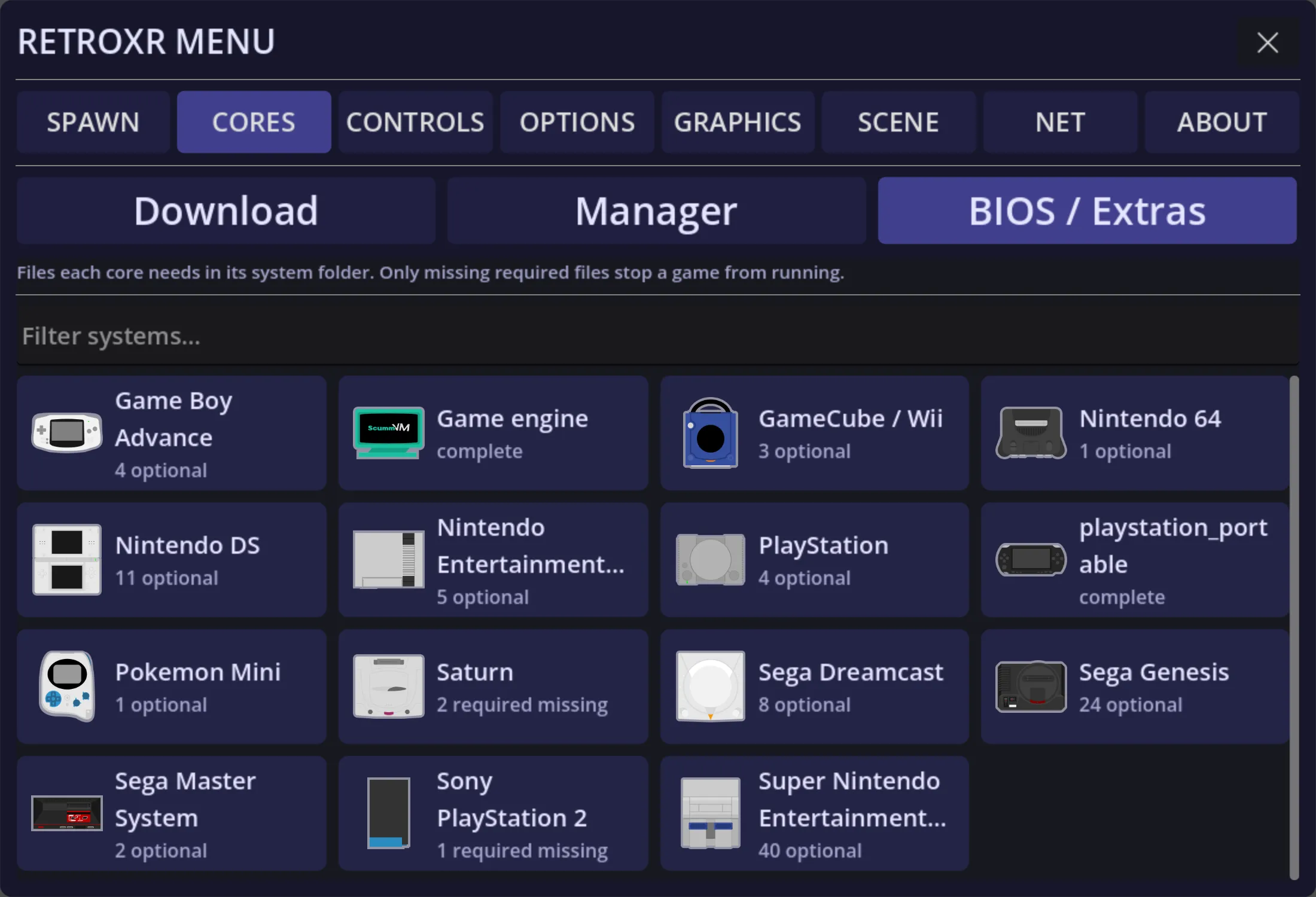
Section titled “Seeing what a system needs”Open CORES and go to the BIOS / Extras view. Every system is listed with its
status at a glance — complete, a count of optional files, or required files missing.
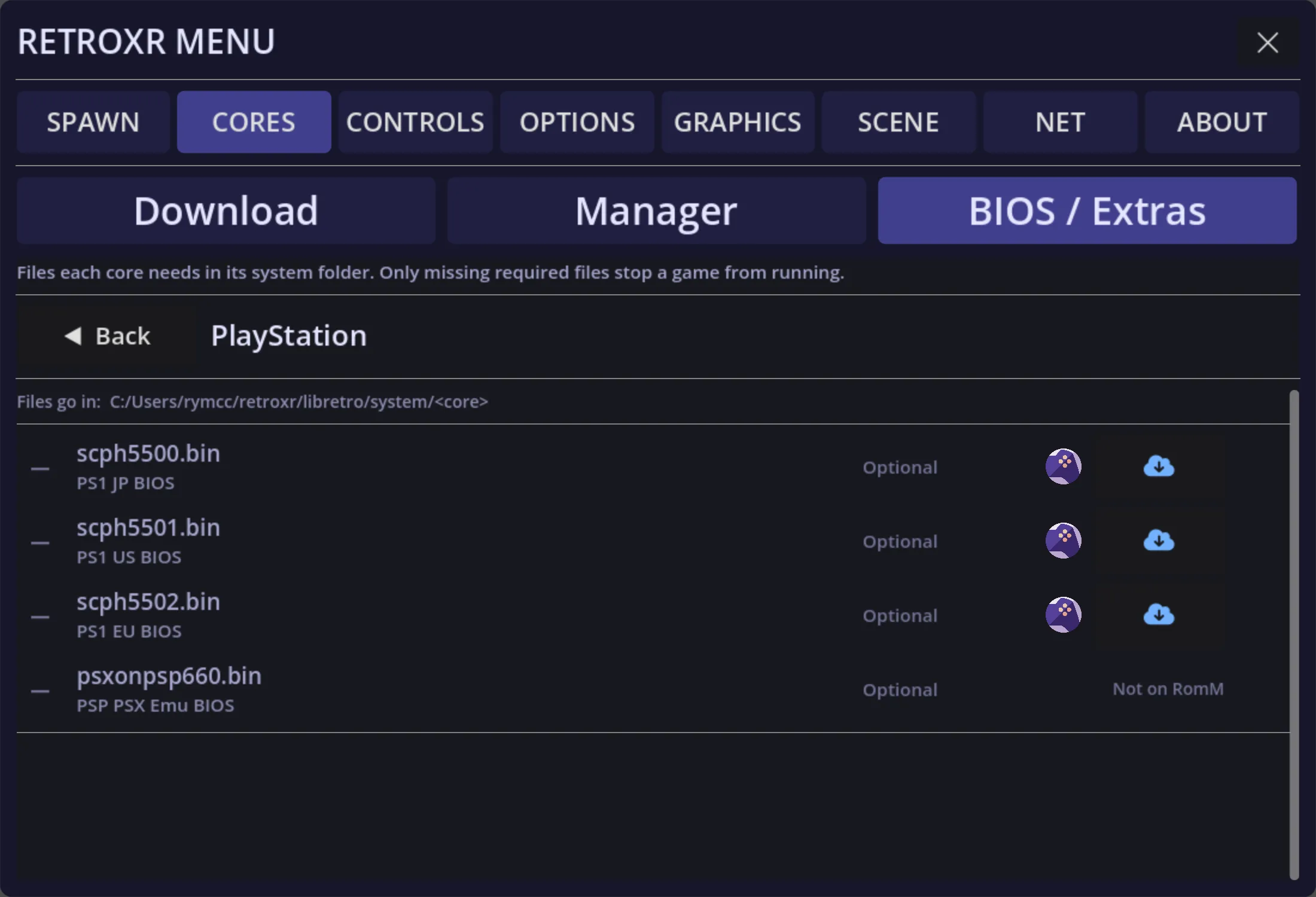
Open one and you get the files themselves, each marked required or optional, with
its exact expected filename. The PlayStation entry, for instance, lists scph5500.bin,
scph5501.bin, scph5502.bin and psxonpsp660.bin.
This is worth checking before you wonder why a game will not start. A missing BIOS usually shows up as a console that powers on and does nothing, not as an error.
Where the files go
Section titled “Where the files go”Every core gets its own firmware folder. This is the single most important thing on
this page, and it is not how RetroArch does it — there is no shared system/ pile that
every core reads from.
libretro/system/<core name>/| Platform | Full path |
|---|---|
| Windows | %USERPROFILE%\retroxr\libretro\system\<core name>\ |
| Linux / macOS | ~/retroxr/libretro/system/<core name>/ |
| Quest | libretro/system/<core name>/ in the web file manager |
The core name is the bare name with no _libretro suffix and no extension:
mednafen_psx_hw, pcsx_rearmed, dolphin, flycast.
Two cores means two copies
Section titled “Two cores means two copies”Because the folder is per core, running two cores for the same machine means the BIOS has to exist under both. Installing a second PlayStation core does not inherit the first one’s firmware:
libretro/system/mednafen_psx_hw/scph5500.binlibretro/system/pcsx_rearmed/scph5500.binIf a game works under one core and hangs on a black screen under another, this is the first thing to check.
Some files live in subfolders
Section titled “Some files live in subfolders”The expected path is not always a bare filename — it can carry folders, and those folders
are part of it. Dolphin wants dolphin-emu/Sys/GC/USA/IPL.bin; PPSSPP wants
PPSSPP/ppge_atlas.zim. Those become:
libretro/system/dolphin/dolphin-emu/Sys/GC/USA/IPL.binlibretro/system/ppsspp/PPSSPP/ppge_atlas.zimThe BIOS / Extras view shows the exact path it wants. Reproduce it exactly, folders and all.
Names are case-sensitive on Quest and Linux
Section titled “Names are case-sensitive on Quest and Linux”RetroXR checks for the file by its exact name and does no case-folding, no renaming and no
searching around. On Quest and Linux the filesystem is case-sensitive, so
SCPH5500.BIN is simply not scph5500.bin and will be reported missing while sitting
right there. On Windows and macOS the same mistake happens to work, because those
filesystems ignore case — which makes this an easy thing to get away with on a PC and then
trip over on a headset.
Getting the files in
Section titled “Getting the files in”The download button, if you run RomM
Section titled “The download button, if you run RomM”If you have a RomM server connected and it holds the file, each entry in the BIOS view gets a download button and RetroXR fetches it for you. This is by far the best route, for two reasons:
- It writes the file to every installed core that wants it, in one action — so the two-copies problem above is handled for you.
- It writes it under the name and subfolder the core expects, correcting the case and
nesting on the way in. A file sitting on your server as
MSX.ROMlands correctly asMachines/Shared Roms/MSX.rom.
That correction only happens on this path. A file you place by hand is taken exactly as you named it.
See connecting RomM.
On Quest: the web file manager
Section titled “On Quest: the web file manager”On a headset this is the only practical route, and it is safe.
libretro/ lives in the app’s internal storage — /data/user/0/com.xenu.retroxr/files/libretro
— not on /sdcard with your games. That means adb push and SideQuest’s file browser
cannot reach it at all. Do not go hunting for it there.
The web file manager can. It is the app’s own server, so anything uploaded through it is owned by the app and stays writable:
- Turn on Web File Manager in
OPTIONSand open the address it shows. - From the root, open
libretro— notmedia. - Open
system, then the folder named after your core, creating it if it is not there. - Drop the file in.
On desktop: straight onto disk
Section titled “On desktop: straight onto disk”There is no web file manager on Windows, Linux or macOS — it only runs on Android. Copy the files into the path from the table above with your normal file manager.
Extras: one-click support packs
Section titled “Extras: one-click support packs”The view is called BIOS / Extras because it covers a second, much easier kind of file.
Several cores need supporting data that is not copyrighted console firmware — databases, compatibility lists, themes, game data. libretro publishes these as archives, so RetroXR can simply download and unpack them for you in one click. Nothing to find, nothing to supply, no RomM required.
The ones most people meet:
| Core | Pack | What it is |
|---|---|---|
| PPSSPP (PSP) | PPSSPP assets | Compatibility database and the font/UI atlases the core will not start without |
| Dolphin (GameCube / Wii) | Dolphin Sys folder | The Sys tree, including codehandler.bin |
| ScummVM | ScummVM themes + extras | Engine data files and the UI theme |
| PCSX2 (PS2) | PCSX2 resources | GameIndex.yaml and friends |
There are a dozen more behind the same button — blueMSX machine definitions, MAME 2003 and 2003-Plus support files, FinalBurn Neo hiscore data, and the self-contained game cores like PrBoom, Cave Story, ECWolf, Dinothawr, Cannonball and XRick, which need their game data to run at all.
If a core has a pack, its entry offers it. Take it.
Booting to the BIOS
Section titled “Booting to the BIOS”Since v0.4.0, if a system’s BIOS is on the device, RetroXR turns on that core’s show the BIOS startup option for you — so a console you power on with no game in it comes up on its own firmware screen, the way it did on the shelf, instead of straight into nothing.
Firmware that unlocks hardware
Section titled “Firmware that unlocks hardware”Four of the expansion units are cartridges carrying a program, and that program is firmware you supply. Until the file is present the unit is not offered in the spawn menu at all, because without it there would be nothing to run.
| Unit | File | Folder |
|---|---|---|
| Super Game Boy | SGB1.sfc |
system/bsnes/ |
| Super Game Boy 2 | SGB2.sfc |
system/bsnes/ |
| Sufami Turbo | STBIOS.bin |
system/snes9x/ |
| BS-X | BS-X.bin |
system/snes9x/ |
New in v0.5.0.
Optional files
Section titled “Optional files”“Optional” means the core runs without it but something is reduced — a region that will not boot, a peripheral that will not work, or a slower fallback. If a specific game misbehaves and the system has an optional BIOS file you have not supplied, that is a reasonable thing to try.
When a file is there but not detected
Section titled “When a file is there but not detected”In order:
- Check the case, character for character, on Quest and Linux.
- Check the subfolder, if the expected path had one.
- Check the core folder — it must be the core actually launching the system, which the Manager shows you.
- Re-open the BIOS view. Presence is re-checked from disk every time, so a correct file shows up immediately; there is no cache to clear.