

Graphics and comfort
Graphics
Section titled “Graphics”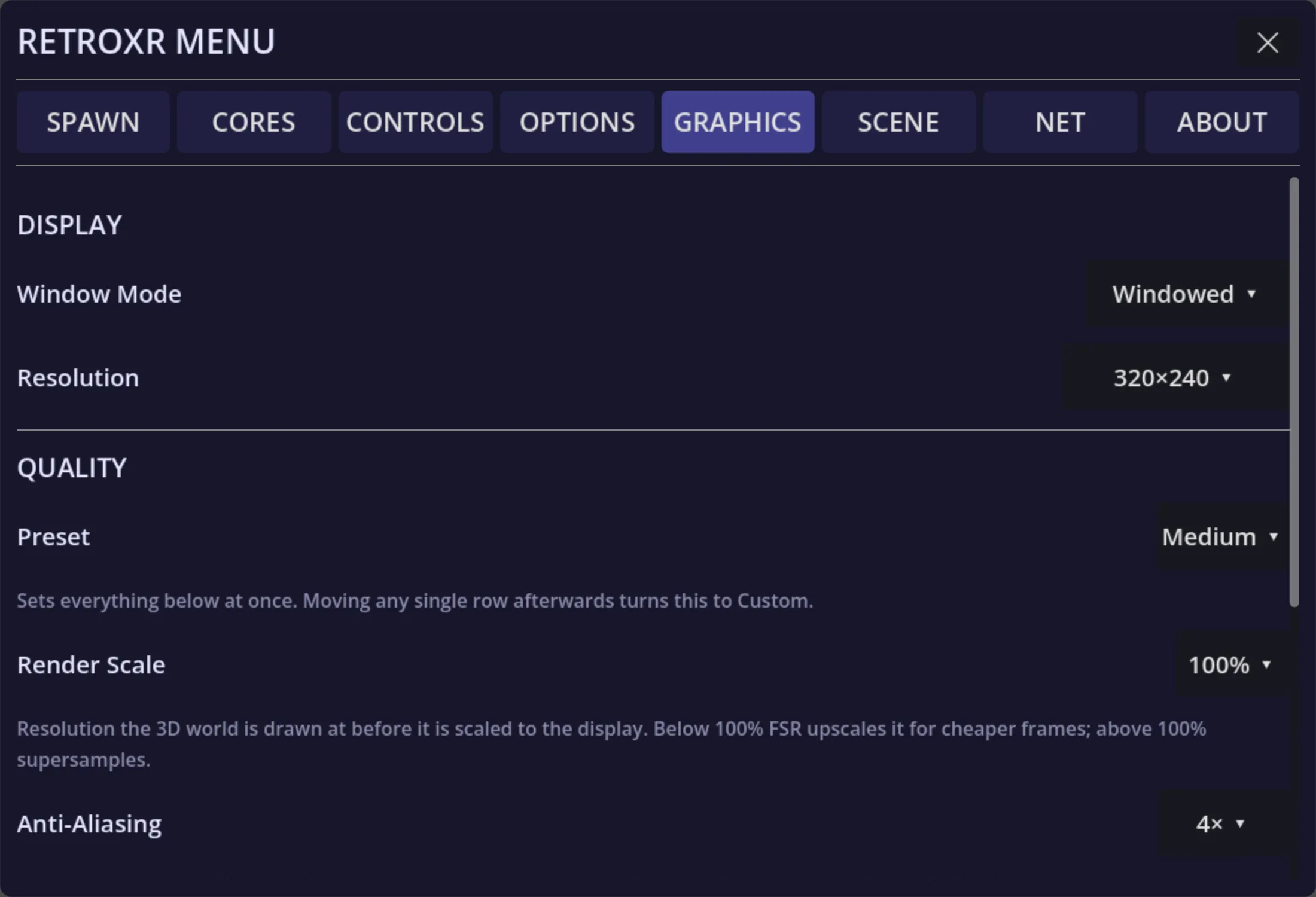
Under GRAPHICS:
- Quality preset — the single dial to reach for first.
- Render scale and eye buffer — resolution, traded against frame rate.
- Refresh rate — a higher rate is smoother but leaves less time per frame.
- CPU and GPU levels — how hard the headset is allowed to work.
- Anti-aliasing, shadows and ambient occlusion.
Foveation, on Quest
Section titled “Foveation, on Quest”As of v0.5.0, foveated rendering works — the headset spends its pixels where you are looking and saves them at the edges of the lens, which is free frame time. Getting there meant rewriting fragment shaders that the mobile GPU would not accept under variable-rate shading.
The performance HUD
Section titled “The performance HUD”There is a HUD showing frame timing, memory, scene load and emulation cost. You can mount it in view, or on your wrist so it is there when you look down and gone when you do not.
If the room feels heavy, turn this on before changing settings blindly — it tells you whether you are short on CPU or GPU, which point at completely different fixes.
Comfort
Section titled “Comfort”Under OPTIONS:
- Slide or teleport movement.
- Snap or smooth turning, with an adjustable snap angle.
- A field-of-view vignette while moving.
- Height offset and world scale. The default world scale is 0.85× as of v0.4.0, up from 0.8× — the room reads a little larger around you.
If VR movement bothers you, teleport plus snap turning plus the vignette is the combination to start from.
Emulator picture
Section titled “Emulator picture”Emulated screens are deliberately kept sharp rather than smoothed — a blurry CRT defeats the point. The picture is sampled so that pixel edges stay crisp without the shimmering you would get from no filtering at all.