

DVD player
The DVD player is a deck you plug into a television, exactly like a console. It plays
your own disc images, with the disc’s real menus, chapters, audio tracks and
subtitles — driven by libVLC and its libdvdnav / libdvdread plugins.
Getting a disc in
Section titled “Getting a disc in”Put your image into the dvd/ folder:
- Windows —
%USERPROFILE%\retroxr\dvd - Linux / macOS —
~/retroxr/dvd - Quest —
/sdcard/Android/data/com.xenu.retroxr/files/dvd
Two things are recognized: a folder containing a VIDEO_TS/ directory, or a standalone
.iso or .img file.
Playing one
Section titled “Playing one”- Open the menu, go to
SPAWN→ DVDs, and click a title. A disc spawns carrying that image — the same way a cartridge carries a ROM. - From the Objects tab, spawn a DVD Player and a TV.
- Run the player’s A/V lead into the TV, the same cable the consoles use. See plugging things in.
- Put the disc into the player’s slot.
- Press PLAY.
Inserting a disc never starts playback on its own — you press play, like you would have.
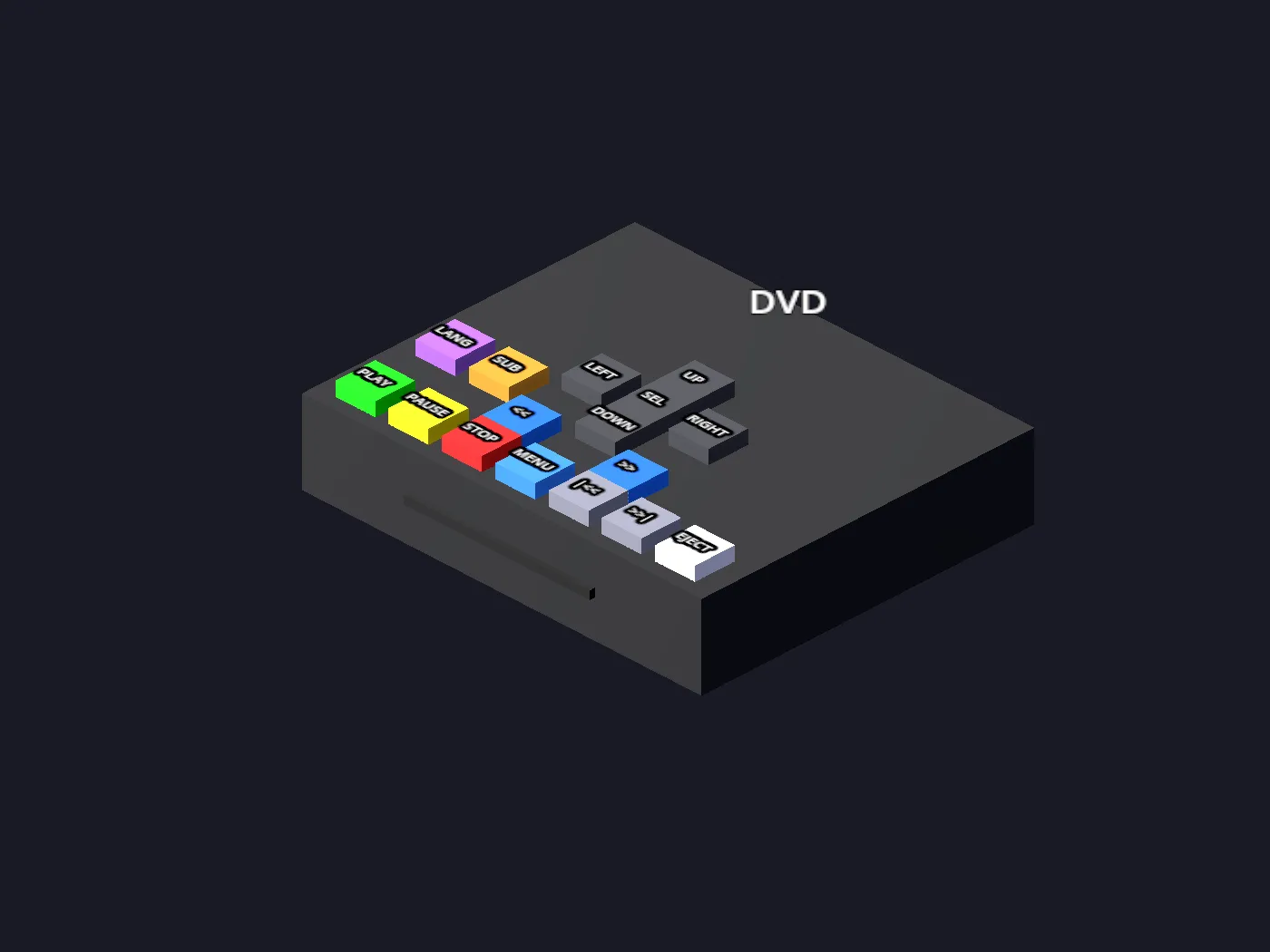
The buttons on the deck
Section titled “The buttons on the deck”| Button | Does |
|---|---|
PLAY PAUSE STOP |
Transport |
EJECT |
Takes the disc back out |
<< >> |
Rewind and fast-forward scan |
|<< >>| |
Previous and next chapter |
MENU |
Back to the disc’s root menu |
UP DOWN LEFT RIGHT SEL |
Navigate the disc’s own menus |
LANG SUB |
Cycle audio and subtitle tracks |
Point at the player and click the left thumbstick to open a floating panel that picks audio and subtitle tracks by name, rather than cycling blindly through them.
From across the room
Section titled “From across the room”You do not have to walk over to the deck. Spawn a TV Remote from the Objects tab, point it at the player, and the same controls appear above it — including the disc-menu cluster. See the TV remote.
Sound and picture
Section titled “Sound and picture”The video renders onto whichever TV the player is plugged into. The television’s own volume and power controls drive the player’s audio and screen, just as they do for a console — so if you have picture and no sound, check the set’s volume before the deck’s.